Workspaces are increasingly the go-to choice for companies and open-source teams aiming to manage shared code, enforce consistency, and simplify dependency management across multiple services. Working within massive codebases often means juggling many interdependent Python projects simultaneously.
To streamline this experience, PyCharm 2026.1.1 introduced built-in support for uv workspaces, as well as those managed by Poetry and Hatch. This new functionality – currently in Beta – allows the IDE to automatically manage dependencies and environments across your entire workspace.
Intelligent workspace detection
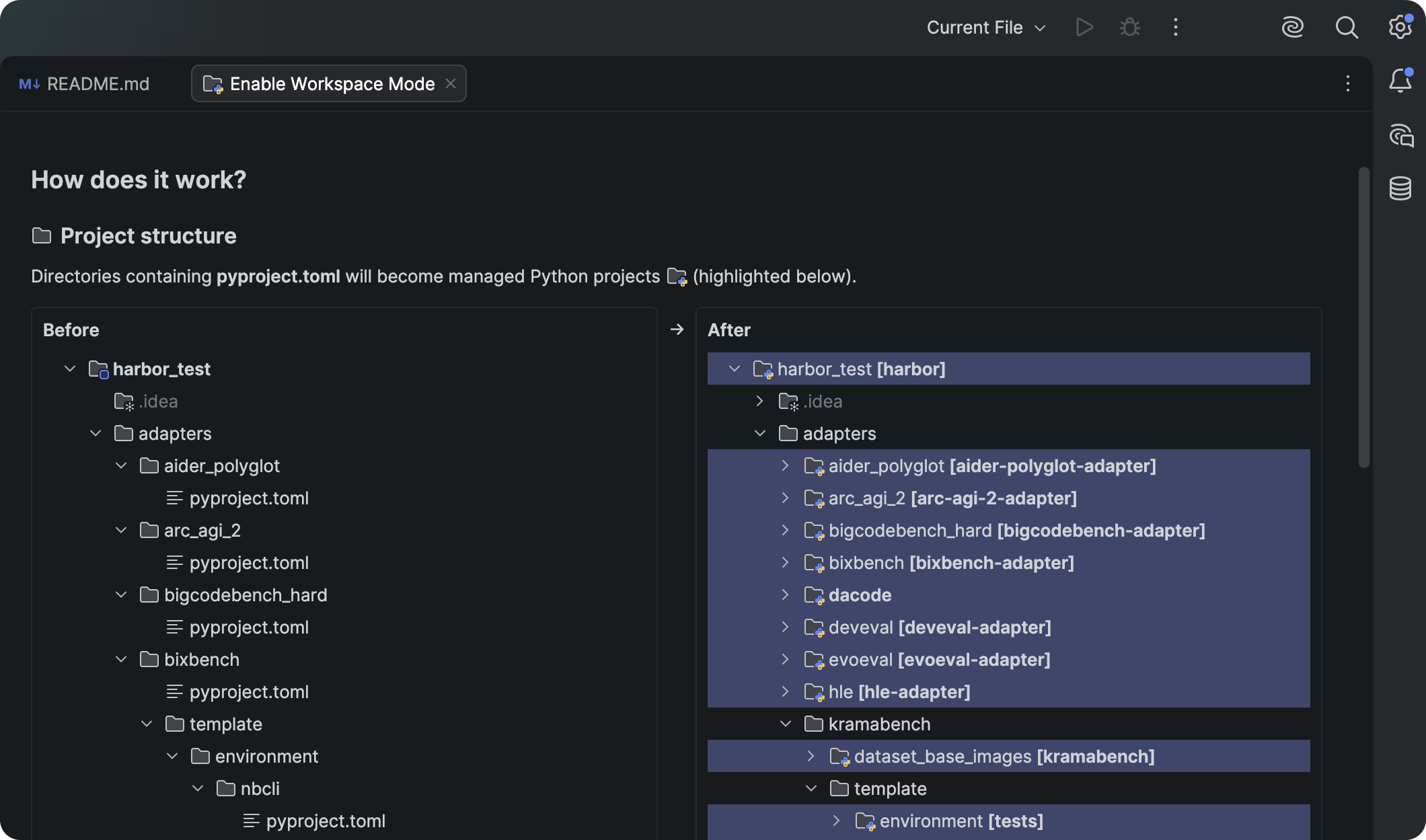
When you open a workspace, PyCharm can now derive its entire structure and all its dependencies directly from your pyproject.toml files. This allows the IDE to understand relationships between projects deeply, significantly reducing the amount of configuration you have to do manually.
Because this is a fundamental change to how PyCharm handles your workspace, we’ve implemented it as an opt-in feature. Here is what you need to know about the transition:
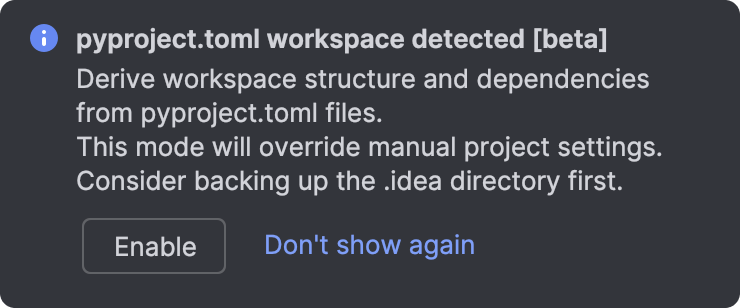
- Opt-in dialog: When you open a project, PyCharm may suggest enabling automatic detection for uv workspaces and Poetry/Hatch setups.
- Manual configuration: You can toggle workspace detection in Settings | Project Structure.
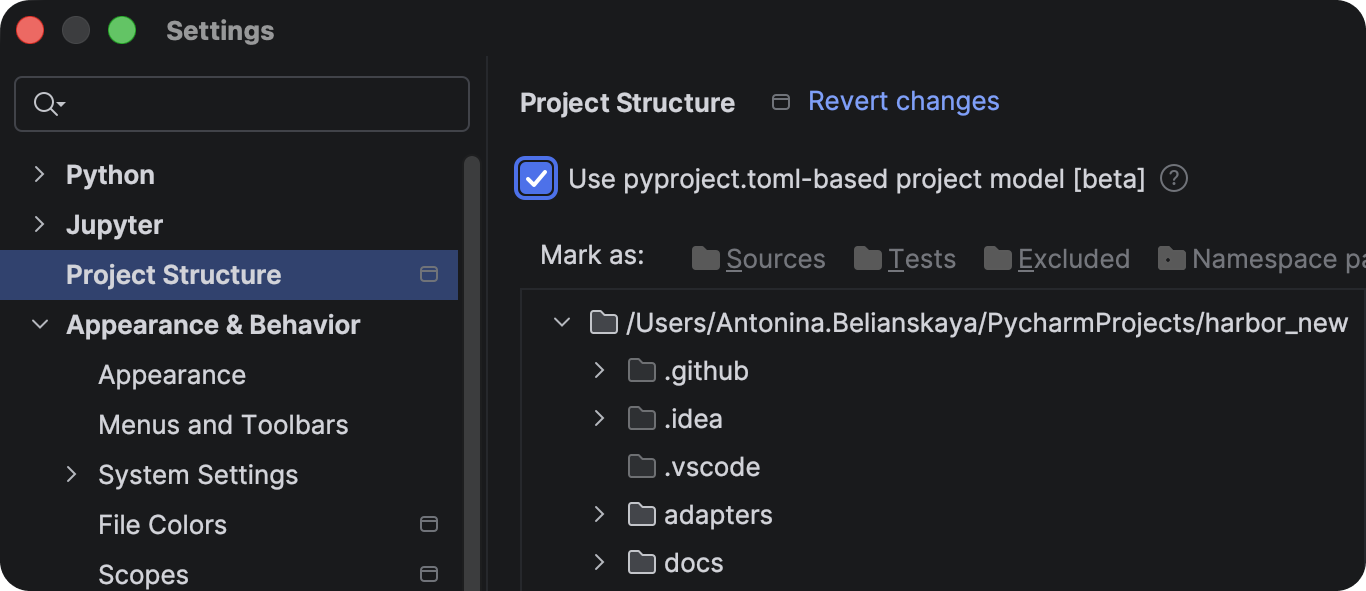
- Configuration note: If you previously manually edited settings in .idea files, those settings may be reset when you agree to the new model.
Managing workspaces and their projects
PyCharm now provides an integrated experience that handles the complexities of multi-package setups in uv workspaces automatically. When you open a uv workspace, the IDE identifies the individual projects and their interdependencies, ensuring the project structure is ready for you to work with.
Visualizing workspace dependencies
Once the workspace is loaded, you can verify how your projects relate to one another. PyCharm presents these dependencies in Settings | Project Dependencies.
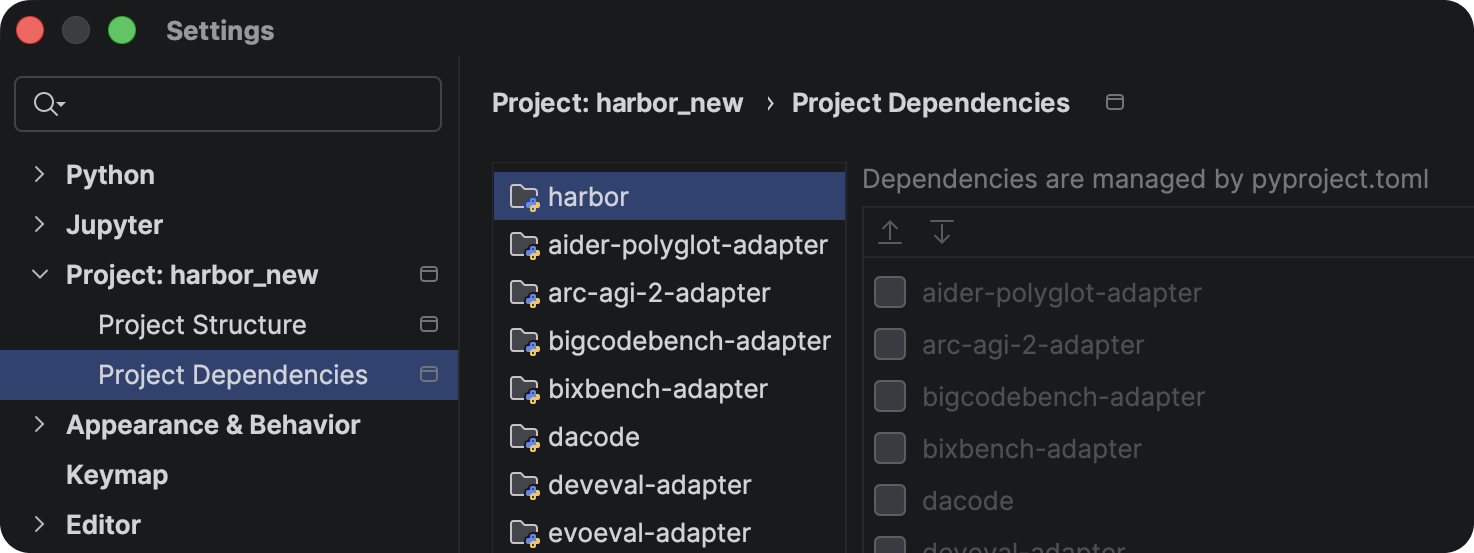
These relationships are derived directly from your configuration and are shown as read-only in the UI. To make changes to the dependency graph, you can edit the pyproject.toml file manually – PyCharm will then update its internal model.
Automatic environment configuration
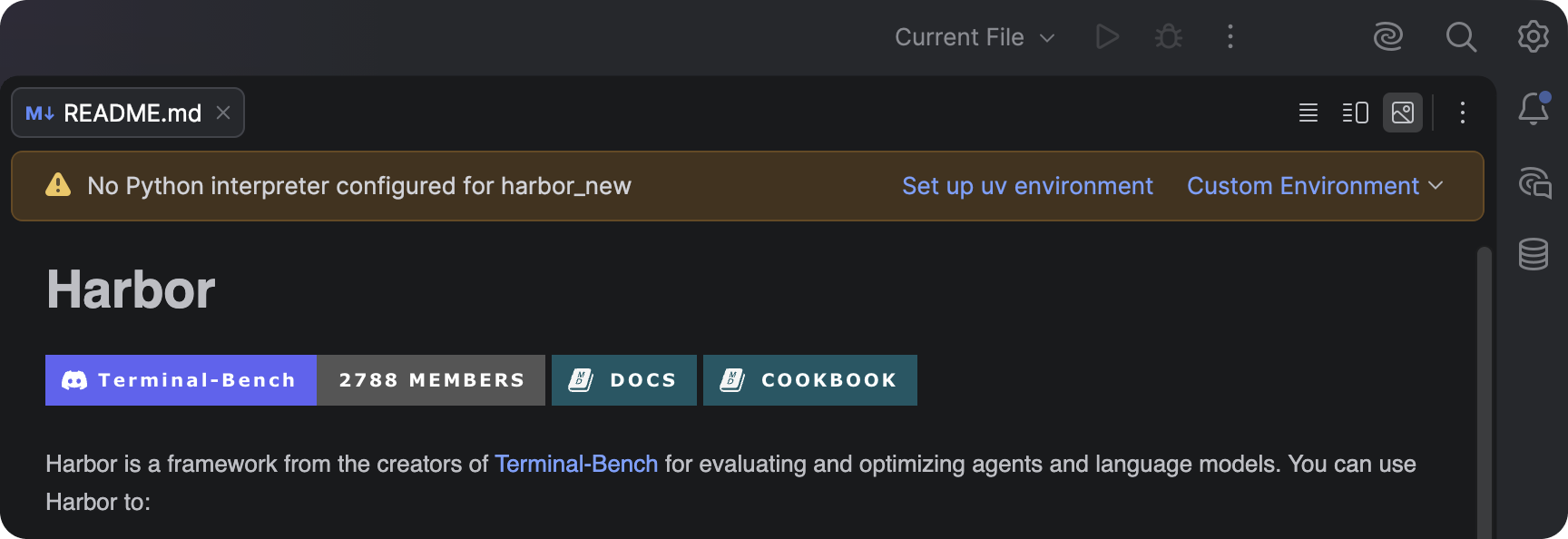
PyCharm prioritizes a zero-config approach to your Python SDK. When you open a .py or pyproject.toml file within a project, the IDE performs an immediate check.
If a compatible environment already exists on your system, PyCharm automatically configures it as the SDK for that project. If no environment is detected, a file-level notification will appear suggesting that you create a new uv environment and install the necessary dependencies for that project.
Maintaining environment consistency
Beyond the initial setup, PyCharm continuously monitors the health of your environment to ensure it stays in sync with your defined requirements.
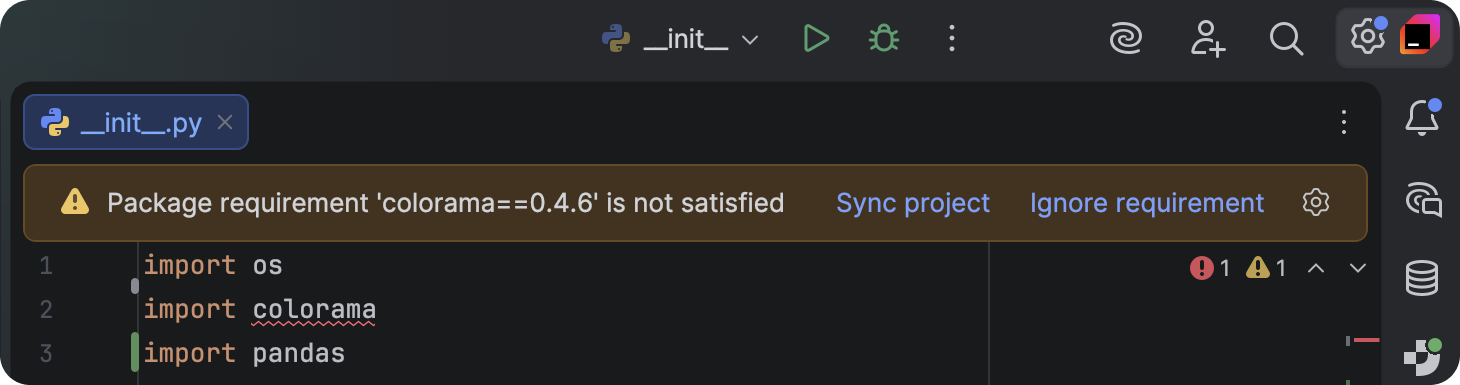
If a dependency is not defined in your pyproject.toml file but is imported in your code, PyCharm will trigger a warning with a Sync project quick-fix to resolve these discrepancies.
Import management
PyCharm also assists when you are actively writing code by identifying gaps in your project configuration.
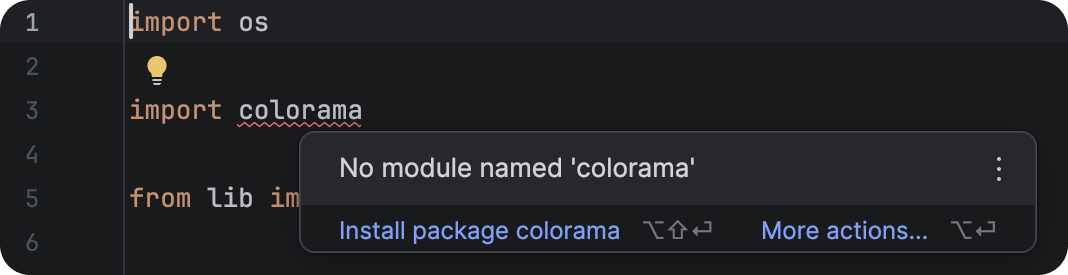
If you import a package that isn’t present in the environment and is not yet listed in the project’s pyproject.toml, the IDE will detect the omission. A quick-fix will suggest adding the package to the environment and updating the corresponding .toml file simultaneously.
Transparency via the Python Process Output tool window
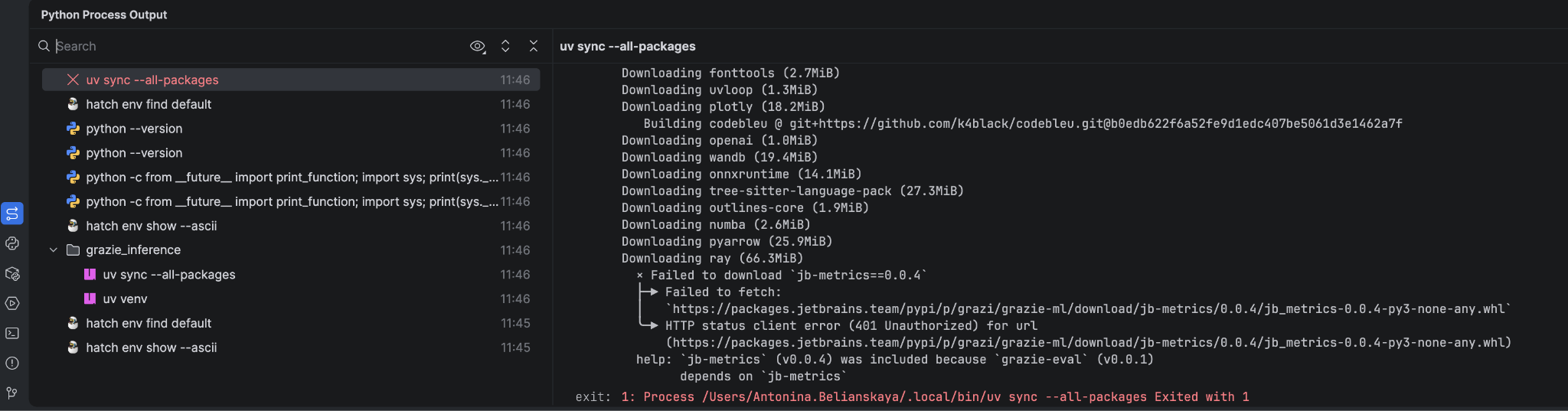
While PyCharm automates the backend execution of commands – such as uv sync –all-packages – it still remains fully transparent.
You can track all executed commands and their live output in the Python Process Output tool window. If synchronization fails for an environment, you can analyze the specific error logs to quickly identify the root cause.
Poetry and Hatch workspaces
The logic for Poetry and Hatch workspaces follows this exact same workflow. PyCharm detects projects via their pyproject.toml files and manages the environments with the same automated precision.
The only minor difference is in tool selection – the suggested environment tool is determined by what you have specified in your pyproject.toml. If no tool is specified, PyCharm will prioritize uv (if installed) or a standard virtual environment to get you up and running quickly.
Looking ahead
This Beta version of the functionality is just the beginning of our focus on supporting complex workspace structures. We are already working on expanding the UI to allow creating new projects, linking dependencies, and activating the terminal for specific projects.
As we refine these features, your feedback is our best guide – please share your thoughts or report any issues on our YouTrack issue tracker.