Over the years, I’ve built up a collection of aliases, shell functions, and CLI tools that make my terminal feel like home. All of it lives in a single repository: my dotfiles.
It’s a backup of every terminal tool and configuration I rely on, and it means I can set up a brand new Mac from scratch in about five minutes. Colleagues at Spatie use it as a starting point for their own setups too.
Let me walk you through what’s in there. I’ll cover the tools and tricks first, with installation and setup further down.
What are dotfiles?
Dotfiles are configuration files that typically live in your home directory and start with a dot: .zshrc, .gitconfig, .vimrc, and so on. They control how your terminal, shell, editor, and various command-line tools behave. The dot prefix makes them hidden by default on macOS and Linux, which is where the name comes from.
The idea behind a dotfiles repository is simple. You put all those configuration files in a git repo, then symlink them to where they need to be on your machine. If you get a new laptop or need to set up a fresh environment, you clone the repo, run the installer, and everything is exactly the way you like it within minutes.
Modern CLI tools
I’ve gradually replaced most traditional Unix tools with faster, more modern alternatives. My aliases handle the switchover transparently:
if command -v eza &> /dev/null; then
    alias ls="eza --icons --group-directories-first"
    alias l="eza -la --icons --group-directories-first --hyperlink"
    alias lt="eza --tree --level=2 --icons"
fi

if command -v bat &> /dev/null; then
    alias cat="bat --style=plain"
fi

if command -v rg &> /dev/null; then
    alias grep="rg"
fi
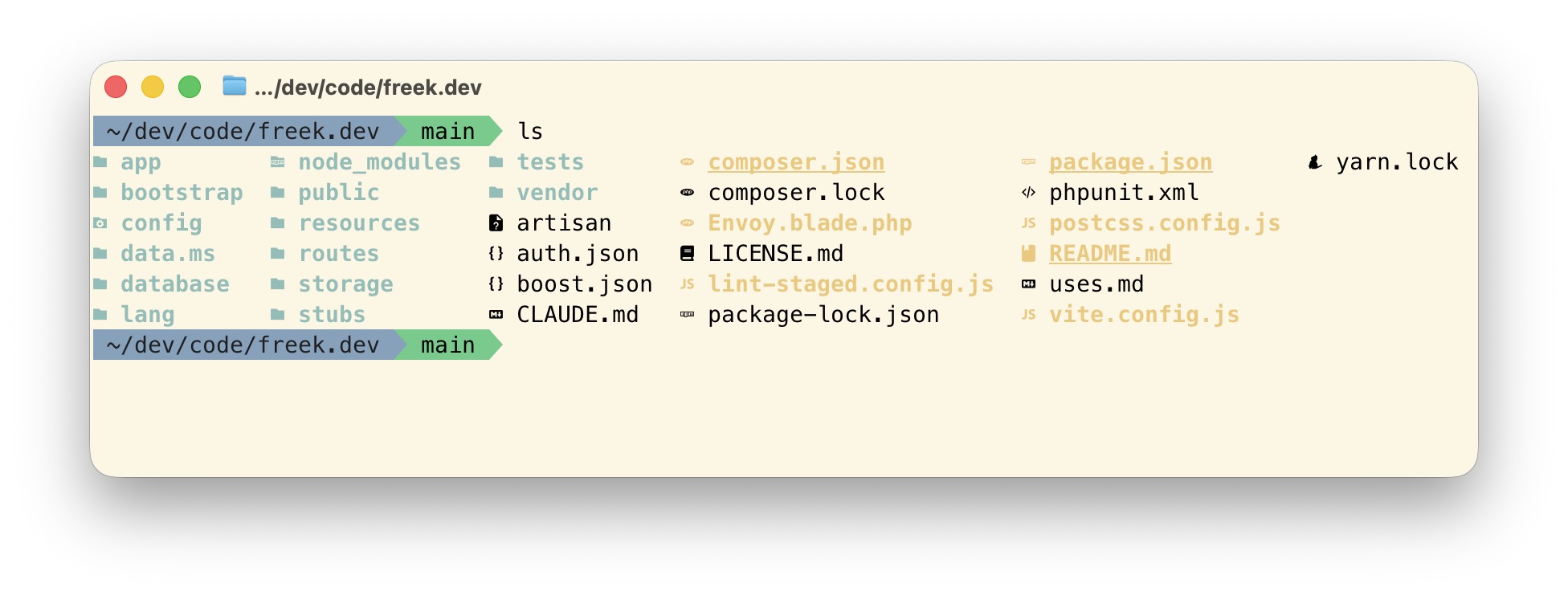
Here’s what ls looks like with eza: colorized output, file type icons, and directories grouped first. Much easier to scan than a plain wall of filenames:
The command -v checks mean these aliases only activate when the tool is actually installed. On a machine without them, I still get the standard versions.
Here’s what each tool does:
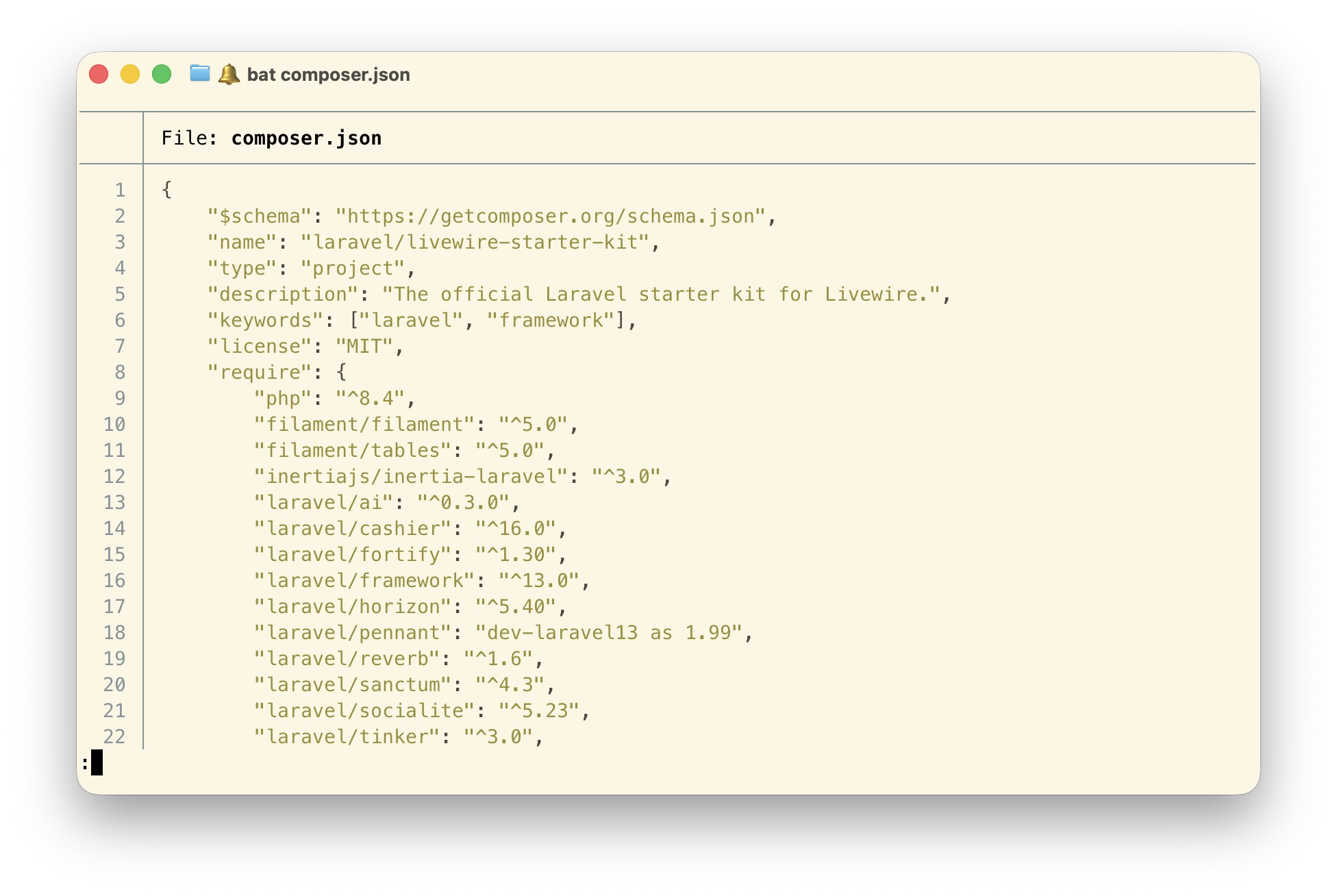
eza replaces ls with colorized output, file icons, and a tree view. bat replaces cat with syntax highlighting. ripgrep replaces grep and is incredibly fast at searching through large codebases. fd replaces find with a much friendlier syntax. zoxide replaces cd with smart directory jumping, which I’ll get to in a minute. And delta makes git diffs actually readable with side-by-side views and syntax highlighting.
Delta is the one that surprised me most. Here’s a plain git diff with it configured as the pager:
Notice that it highlights the parts of a line that changed, not just the line itself. On the signature it marks the added : void, and further down it marks exactly where now()->addSeconds(20) became $socialDelay. Plain git diff would paint those whole lines red and green and leave you to spot the difference yourself.
All of these are Rust-based, which means they’re fast. Noticeably fast, even on large projects.
Jumping between projects with z
Of everything in this post, zoxide is my favourite. It gives you a z command that remembers every directory you’ve visited. Instead of typing a path, you type a fragment of the directory name, and zoxide takes you to the best match.
On any given day I bounce between five or six projects. With z, that looks like this:
z ohdear
z mailcoach
z dotfiles
z flare
z freek
Those commands take me to ohdear.app, mailcoach.app, my dotfiles, flareapp.io, and back to freek.dev. It doesn’t matter where I am when I type them. No paths, no tab completion, no cd ../../.. to climb out of a subdirectory first.
Watch what happens when I land in flareapp.io: fnm notices the project’s Node version and switches to it automatically. That’s the --use-on-cd flag doing its work, and it triggers on a z jump just as it would on a cd.
Zoxide ranks directories by a combination of how often and how recently you visit them. The projects I work on daily win over the ones I opened once last year, so the fragments I type can stay short. If a fragment is ambiguous, zi opens an interactive picker instead.
Wiring it up takes one line in .zshrc:
eval "$(zoxide init zsh)"
That’s the whole setup. Zoxide builds its database as you go, so it gets better the more you use it. For the first day or two you’ll still reach for cd, and then you’ll never think about it again.
Shell configuration
The heart of the setup is .zshrc. It loads Oh My Zsh with a customized agnoster theme (a popular Powerline-style prompt that shows your current directory and git status at a glance), then sources three separate files: .exports for environment variables, .aliases for shortcuts, and .functions for more complex shell functions.
Splitting things up like this keeps each file focused and easy to navigate. When I want to add a new alias, I know exactly where to go.
Aliases
Aliases are the quick wins that save you keystrokes every single day. If you work with Laravel, these are especially handy:
alias a="php artisan"
alias mfs="php artisan migrate:fresh --seed"
alias nah="git reset --hard;git clean -df"
alias c="claude"
alias cy="claude-yolo"
a turns any artisan command into something short. a make:model Post -m just flows better than typing out php artisan every time.
mfs rebuilds the entire database from scratch: drops all tables, runs every migration, and seeds. This is why I don’t bother with down migrations. When your workflow is “nuke it and rebuild,” rollbacks become unnecessary.
nah is probably my most-used alias. Changed something, realized it was a bad idea? Type nah and everything is back to the last commit. It’s the “undo everything” button for your working directory.
c and cy are for Claude Code. cy is short for claude-yolo, which runs Claude Code with --dangerously-skip-permissions. I’ll be honest: cy is the one I use most these days. 😅
Composer gets the same treatment. Four aliases cover everything I do with it day to day:
alias cu="composer update"
alias cr="composer require"
alias ci="composer install"
alias cda="composer dump-autoload -o"
For git, I keep it simple:
alias push="git push"
alias pull="git pull"
alias gpo="git push origin"
alias uncommit="git reset --soft HEAD~1"
uncommit is one of those aliases you don’t need often, but when you do, you’re glad it’s there. It undoes the last commit but keeps all your changes staged, ready to be committed again. Useful when you committed too early, want to reword the message, or need to split one commit into two.
The small aliases that earn their keep
The shortcuts that save me the most time are the simple ones. I type them dozens of times a day without thinking, and that’s exactly where the value is.
alias o="open ."
alias hostfile="sudo vi /etc/hosts"
alias sshconfig="vi ~/.ssh/config"
alias flushdns="sudo dscacheutil -flushcache; sudo killall -HUP mDNSResponder"
alias flush-redis="redis-cli FLUSHALL"
alias ip="curl ifconfig.me/ip ; echo"
o opens the current directory in Finder. It saves maybe two seconds, but I use it constantly, and two seconds many times a day is worth a one-line alias. That’s the whole calculation. Frequency beats sophistication.
hostfile and sshconfig exist because I could never remember whether it was /etc/hosts or /etc/hostfile, and because ~/.ssh/config is just annoying to type. flushdns is the macOS incantation for clearing the DNS cache, which you need roughly once a year and can never recall when you do.
Opening the current project in an editor gets an alias per editor:
alias phpstorm='open -a ~/Applications/PhpStorm.app "`pwd`"'
alias vscode='code "`pwd`"'
alias zed='open -a /Applications/Zed.app "`pwd`"'
For Laravel work, tunnel shares my local site on a public URL through Valet, always on the same subdomain so the URL stays stable across restarts:
alias tunnel='valet share -subdomain=freekmurze -region=eu'
And two aliases for toggling hidden files in Finder, which is the kind of thing you look up every single time otherwise:
alias show="defaults write com.apple.finder AppleShowAllFiles -bool true && killall Finder"
alias hide="defaults write com.apple.finder AppleShowAllFiles -bool false && killall Finder"
There’s one alias in my .aliases that isn’t a shortcut at all:
alias sudo='sudo '
That trailing space is deliberate. Normally the shell won’t expand an alias that appears after sudo, so sudo l fails with “command not found.” The trailing space tells zsh to check the next word for an alias too. A one-character fix for a papercut I hit for years before I learned about it.
Custom functions
For anything more complex than a simple alias, I use shell functions. My .functions file contains a handful of these.
The p function runs tests. It detects whether the project uses Pest or PHPUnit and calls the right one:
function p() {
   if [ -f vendor/bin/pest ]; then
      vendor/bin/pest "$@"
   else
      vendor/bin/phpunit "$@"
   fi
}
I can also filter tests with pf:
function pf() {
   if [ -f vendor/bin/pest ]; then
      vendor/bin/pest --filter "$@"
   else
      vendor/bin/phpunit --filter "$@"
   fi
}
When a suite gets big enough that I notice the wait, pp runs it in parallel:
alias pp="php artisan test --parallel"
The mkd function creates a directory and moves into it. Creating a directory you don’t then want to enter is rare enough that I’ve stopped typing the two commands separately:
function mkd() {
   mkdir -p "$@" && cd "$@"
}
git-prune-local deletes every local branch whose remote counterpart is gone. After a few months of merging pull requests, git branch becomes unreadable, and this cleans it up in one go:
function git-prune-local() {
  git fetch -p && git branch -vv | grep ': gone]' | awk '{print $1}' | xargs git branch -D
}
clone is a two-line function that saves me from ever typing a GitHub URL again. It hands off to the GitHub CLI, which accepts the owner/repo shorthand:
function clone() {
  gh repo clone "$1" "${@:2}"
}
So clone spatie/laravel-permission is all I need.
digga prints the DNS records for a domain in a format I can actually read, instead of the wall of text that plain dig gives you:
function digga() {
	dig +nocmd "$1" any +multiline +noall +answer
}
The db function is a wrapper around MySQL for quick database operations:
function db() {
    case "$1" in
        refresh) mysql -uroot -e "drop database $2; create database $2" ;;
        create)  mysql -uroot -e "create database $2" ;;
        drop)    mysql -uroot -e "drop database $2" ;;
        list)    mysql -uroot -e "show databases" | sed 's/[|[:space:]]//g' ;;
    esac
}
So db create myapp creates a database, db refresh myapp drops and recreates it, and db list shows all databases. No need to remember the MySQL CLI syntax.
scheduler runs Laravel’s scheduler in a loop, the way cron would in production. Handy when you’re building something scheduled and want to watch it fire without waiting on the real thing:
function scheduler() {
   while :; do
      php artisan schedule:run
      echo "Sleeping 60 seconds..."
      sleep 60
   done
}
My commit function is probably the most interesting one. I wrote about it separately, but the short version is: it uses Claude to generate commit messages from the git diff. Type commit with no arguments and you get a descriptive message instead of my old habit of writing “wip” for everything.
Here I delete composer.json and type commit with no arguments. The spinner runs while Claude reads the staged diff, and a moment later the commit lands with “Delete composer.json” as its message.
This is where uncommit earns its place. Every so often Claude writes a message that misses the point of the change. Typing uncommit rewinds that commit and leaves everything staged, so I can run commit again for a second attempt, or give up and write the message myself. The two aliases work as a pair: one guesses, the other lets me take the guess back.
Git configuration
My .gitconfig is worth a look too. The most impactful setting is configuring delta as the default pager:
[core]
    pager = delta

[interactive]
    diffFilter = delta --color-only

[delta]
    navigate = true
    light = false
    side-by-side = true
    line-numbers = true
This gives me side-by-side diffs with line numbers and syntax highlighting for every git diff, git log -p, and git show command, which is what you saw in the video near the top of this post. Going back to the default diff output feels painful after using this.
I also have a global gitignore to keep .DS_Store, .idea, node_modules, and other junk out of every repository without needing per-project ignore rules. The idea is simple: instead of adding the same entries to every project’s .gitignore, you configure one file that applies to all repos on your machine. It keeps your project gitignore files focused on project-specific things, and you never accidentally commit .DS_Store again.
The install script
My dotfiles repo has a bin/install script that handles the full setup. Run it on a fresh Mac and about five minutes later, everything is exactly the way you like it.
It starts by installing Oh My Zsh (a framework for managing your Zsh configuration with plugin support and themes) and creating all the necessary symlinks so your config files end up where the system expects them.
Then it runs Homebrew to install everything declared in a Brewfile, sets up PHP extensions, configures Node.js via fnm, and installs global Composer packages like Valet and Pint. At the end, it optionally sets up Claude Code with all your skills and agents.
The symlink step is the core of the installer. It connects each config file in the repo to where the system expects it:
ln -sf ~/.dotfiles/home/.zshrc ~/.zshrc
ln -sf ~/.dotfiles/home/.gitconfig ~/.gitconfig
ln -sf ~/.dotfiles/config/ghostty/config ~/.config/ghostty/config
The same pattern applies to Zed, Vim, and everything else. The benefit: when you edit ~/.zshrc, you’re actually editing the file inside ~/.dotfiles/, so every change is automatically tracked by git. No copying files around, no syncing, no forgetting to update the repo after a tweak. And because it’s all in git, your settings are backed up by default. Tweak an alias, push, and it’s safe. Get a new laptop, clone the repo, and you’re right back where you left off.
I use Ghostty as my terminal, and its configuration is managed through dotfiles too. The config is minimal: it sets the working directory to my code folder, uses a block cursor, and tweaks one palette color.
The Brewfile
All my Homebrew packages are declared in a single Brewfile. This is the canonical list of everything I need installed on a fresh Mac:
# Modern CLI tools
brew "zoxide"
brew "bat"
brew "eza"
brew "ripgrep"
brew "fd"
brew "git-delta"
brew "fnm"
brew "fzf"
brew "jq"
brew "yq"
brew "bottom"

# Development
brew "php"
brew "composer"
brew "mysql"
cask "claude-code"
cask "zed"
Running brew bundle --file=~/.dotfiles/config/Brewfile installs everything in one go. Adding a new tool is just appending a line and running that command again.
Here’s what each of those modern CLI tools does:
- zoxide – A smarter
cd. It learns which directories you visit and lets you jump to them by partial name.z dotfilesfrom anywhere takes you straight to~/.dotfiles. - bat –
catwith syntax highlighting and line numbers. Makes reading files in the terminal actually pleasant. - eza – A modern
lswith icons, colors, tree view, and git status integration. - ripgrep –
grep, but fast. Respects.gitignoreby default and searches through large codebases in milliseconds. - fd – A simpler
find.fd migrationbeatsfind . -name '*migration*'every time. - git-delta – Beautiful side-by-side diffs with syntax highlighting. Configured as the default git pager (see the git section above).
- fnm – Fast Node.js version manager. Automatically switches Node versions when you
cdinto a project with a.node-versionfile. - fzf – A fuzzy finder for everything. Press
Ctrl+Rand search through your command history interactively instead of mashing the up arrow. - jq – Command-line JSON processor. Pipe any API response through
jqand get readable, colorized, filterable output. - yq – The same thing as
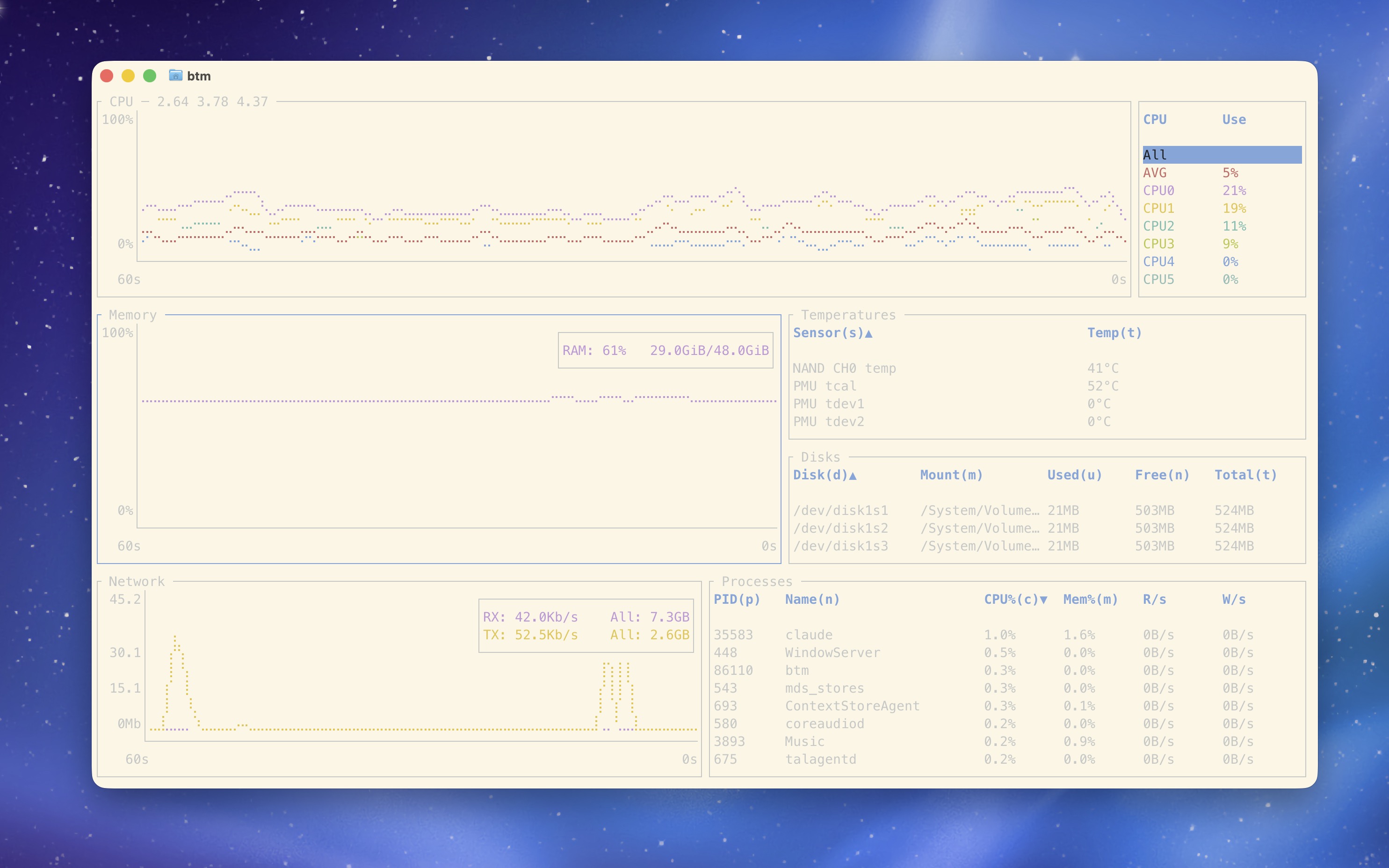
jq, but for YAML files. - bottom – A graphical process/system monitor. I have it aliased as
htopandtop.
Claude Code configuration
Since I wrote about my Claude Code setup in a separate post, I’ll keep this brief. My dotfiles also version-control my entire Claude Code configuration: the global CLAUDE.md instructions, custom skills, custom agents, and settings. All of it is symlinked from ~/.dotfiles/config/claude/ to ~/.claude/.
This means when I clone my dotfiles on a new machine, my Claude Code setup comes along for the ride. Same agents, same skills, same guidelines, ready to go immediately.
Customization without conflicts
One pattern I like is the support for a ~/.dotfiles-custom directory. My .zshrc sources files from this directory if they exist:
for file in ~/.dotfiles-custom/shell/.{exports,aliases,functions,zshrc}; do
    [ -r "$file" ] && [ -f "$file" ] && source "$file"
done
This means I can have machine-specific configuration that never gets committed to the dotfiles repo. Work-specific API keys, aliases for a particular project, or anything else that shouldn’t be shared publicly.
In closing
Dotfiles are one of those things that seem like overkill until you set them up. Then you wonder how you ever lived without them. The initial investment pays off every time you open a terminal, and it really pays off the day you set up a new machine.
My entire setup is public at github.com/freekmurze/dotfiles. Feel free to fork it and make it your own. That’s the beauty of dotfiles: everyone’s are different, tailored to how they work.
If you want to see more about the rest of my development environment, including my editor, macOS apps, and hardware, check out my uses page.